Order Management
 Order Management
This guide explains how to use the "Order Management" function in the GPM.NET system, helping users understand order-related operations.
Operating Instructions
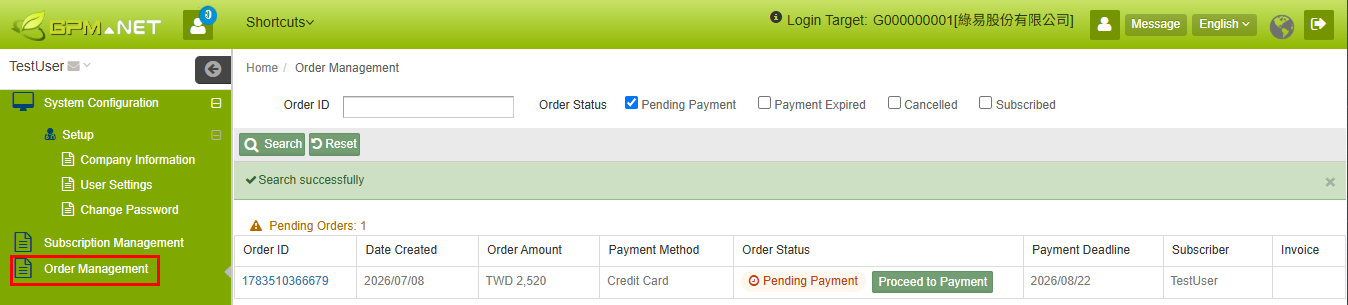
- Click "Order Management" on the left-side menu to enter the Order Management page.
- To search for a specific order, use [Order ID] or [Order Status] to further specify the search criteria.
- Click "Search" to execute the order search.
- In the order list, you can view the Order ID, Date Created, Order Amount, Payment Method, Order Status, Payment Deadline, Subscriber, and Invoice information.
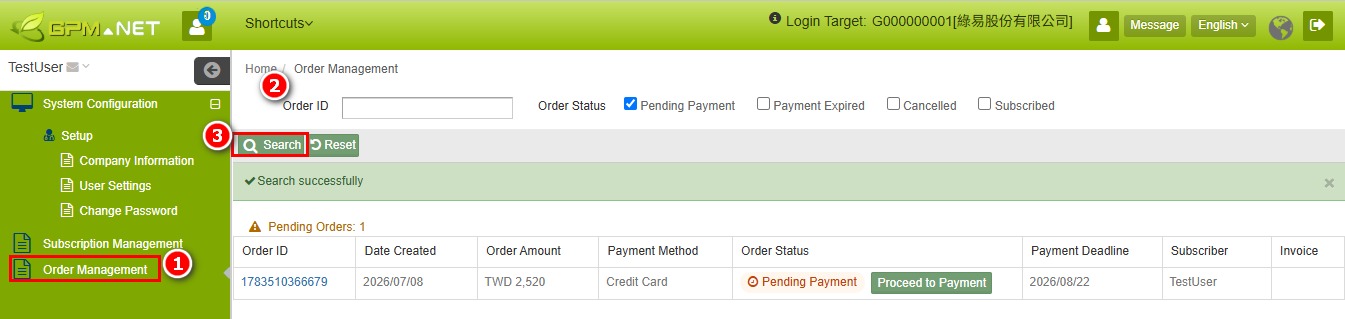
- If the Order Status is "Pending Payment", click "Proceed to Payment" next to the order status to enter the payment process.
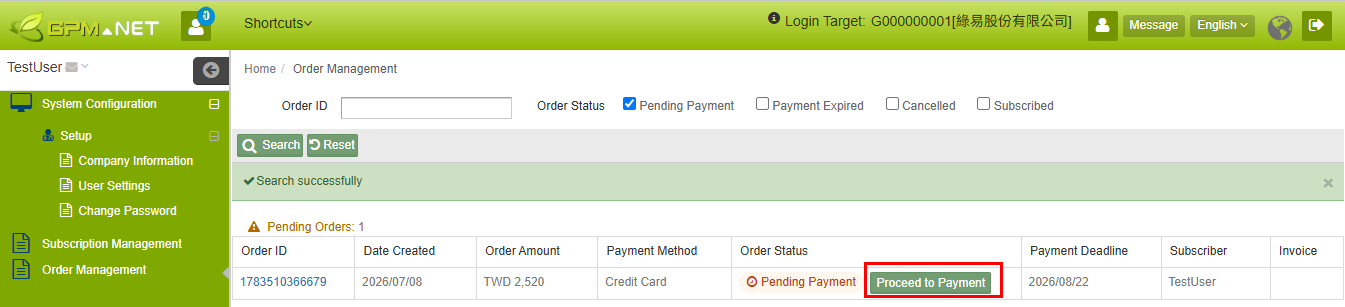
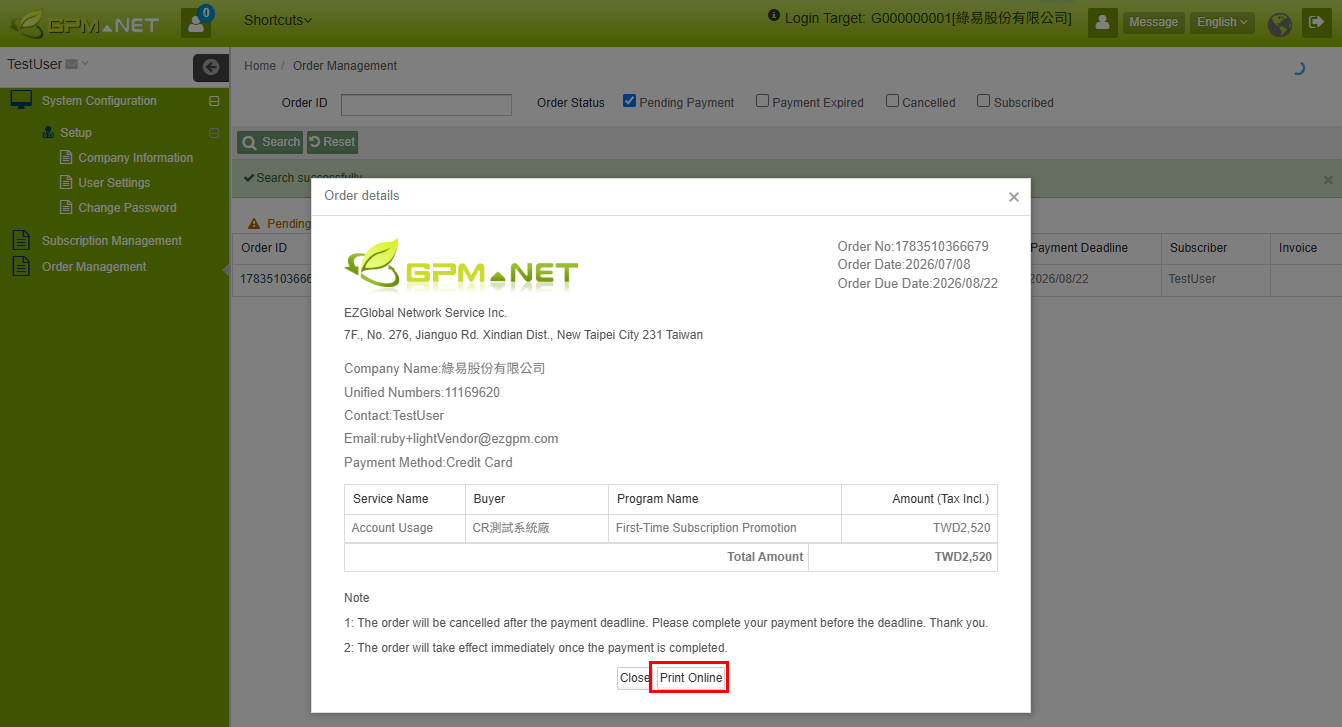
- To view order details, click the "Order ID" in the order list.
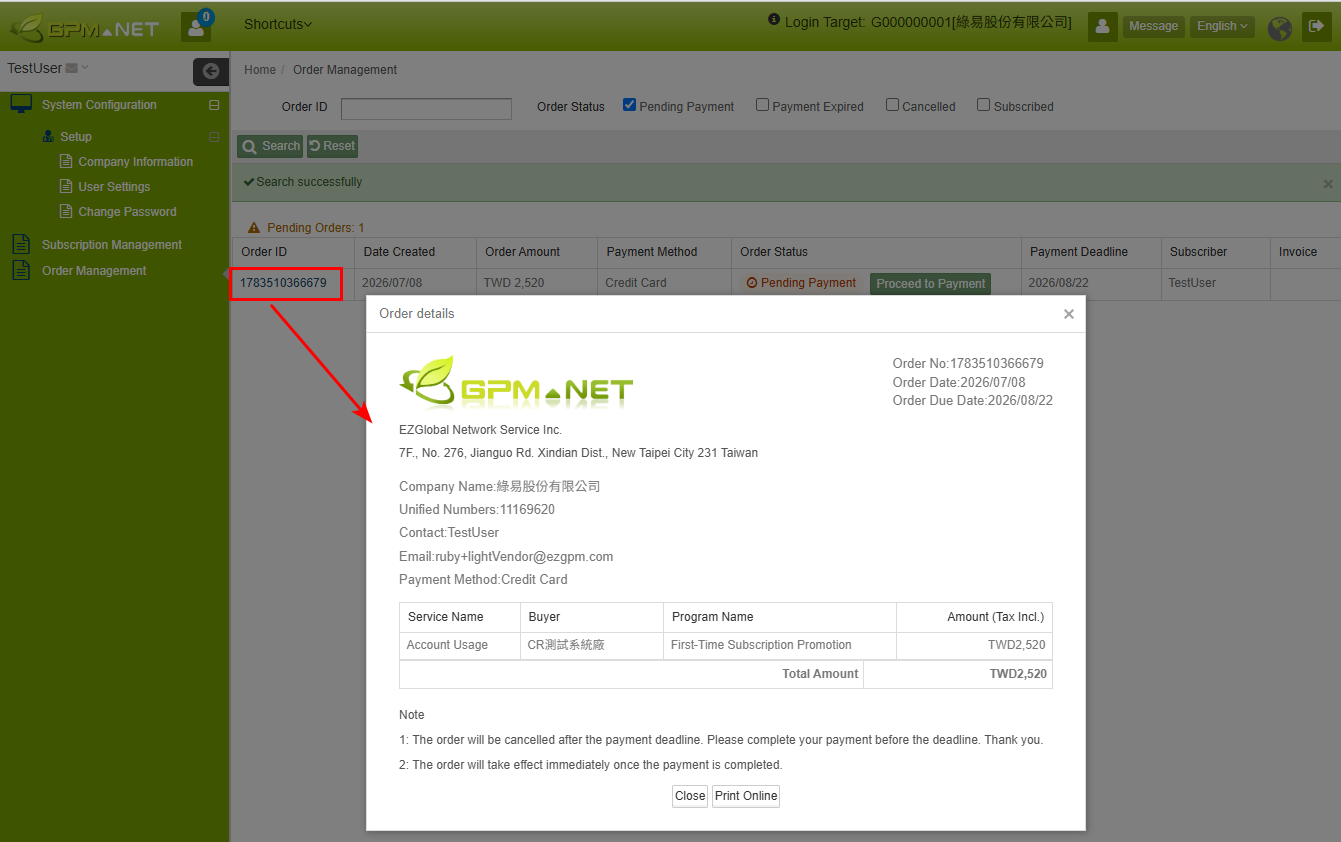
- To print or save the order content, click "Print Online".
-
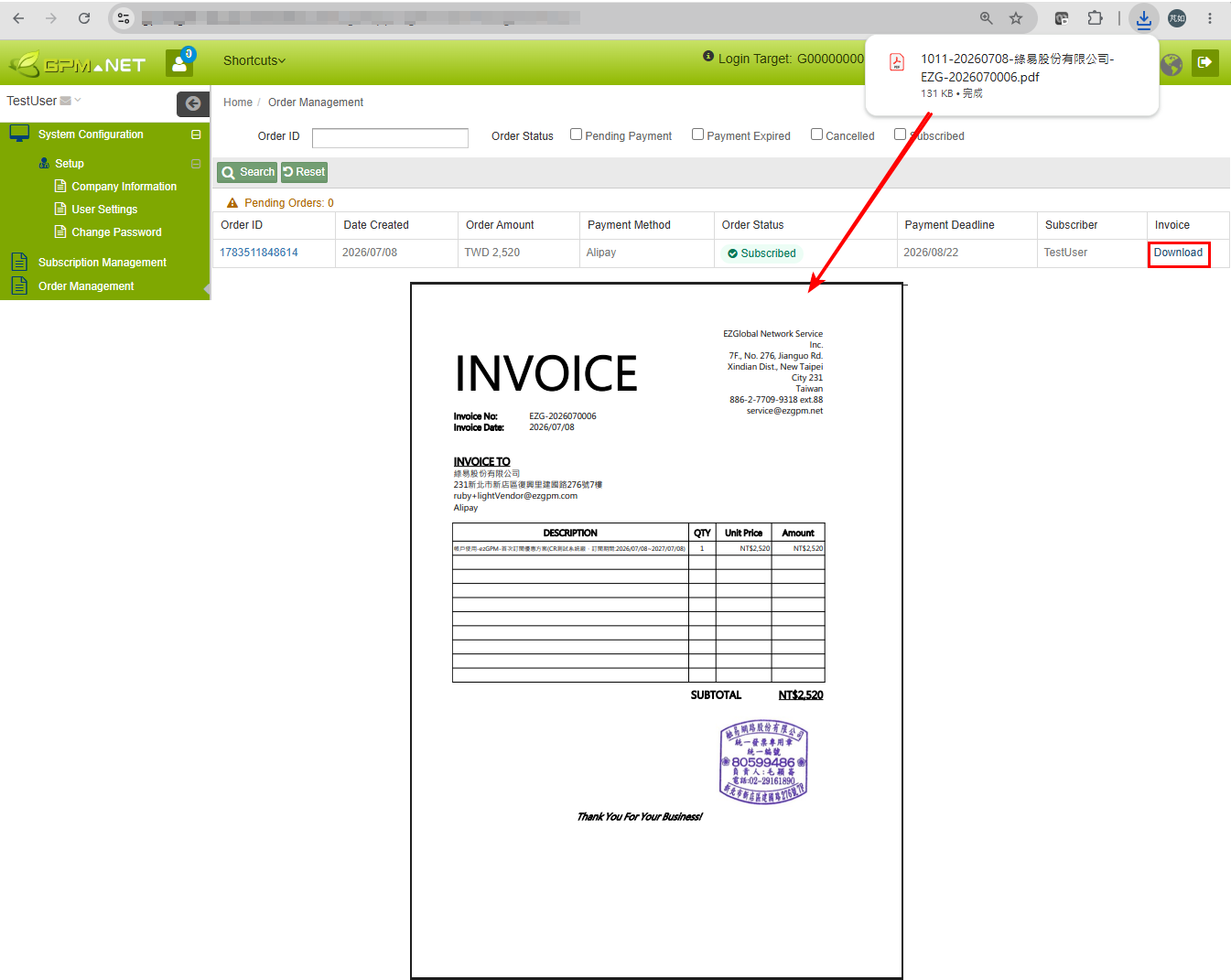
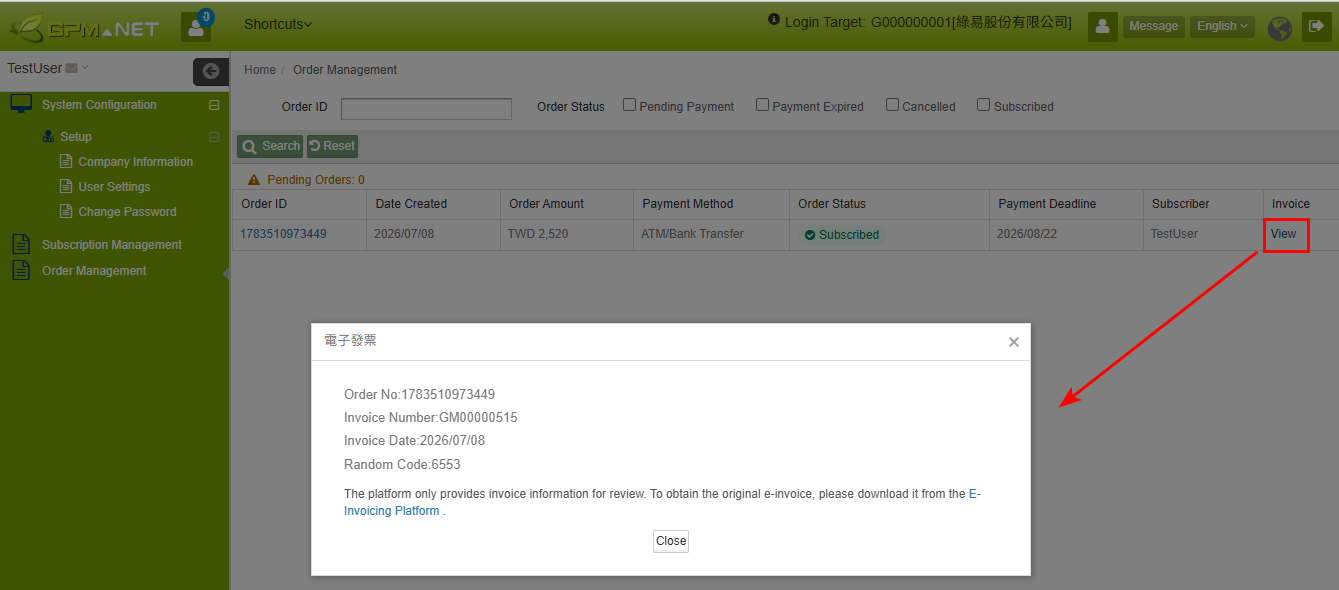
If payment has been completed, click "Invoice" to download the invoice information. The system provides corresponding information based on the company's region.
-
Overseas companies: Invoice
-
Taiwan companies: E-invoice
-
Payment Instructions
After the order is created, if payment is not completed by the Payment Deadline, the system will automatically cancel the order. You will need to restart the subscription process.
The payment due date is 45 days from the order date.
Credit Card
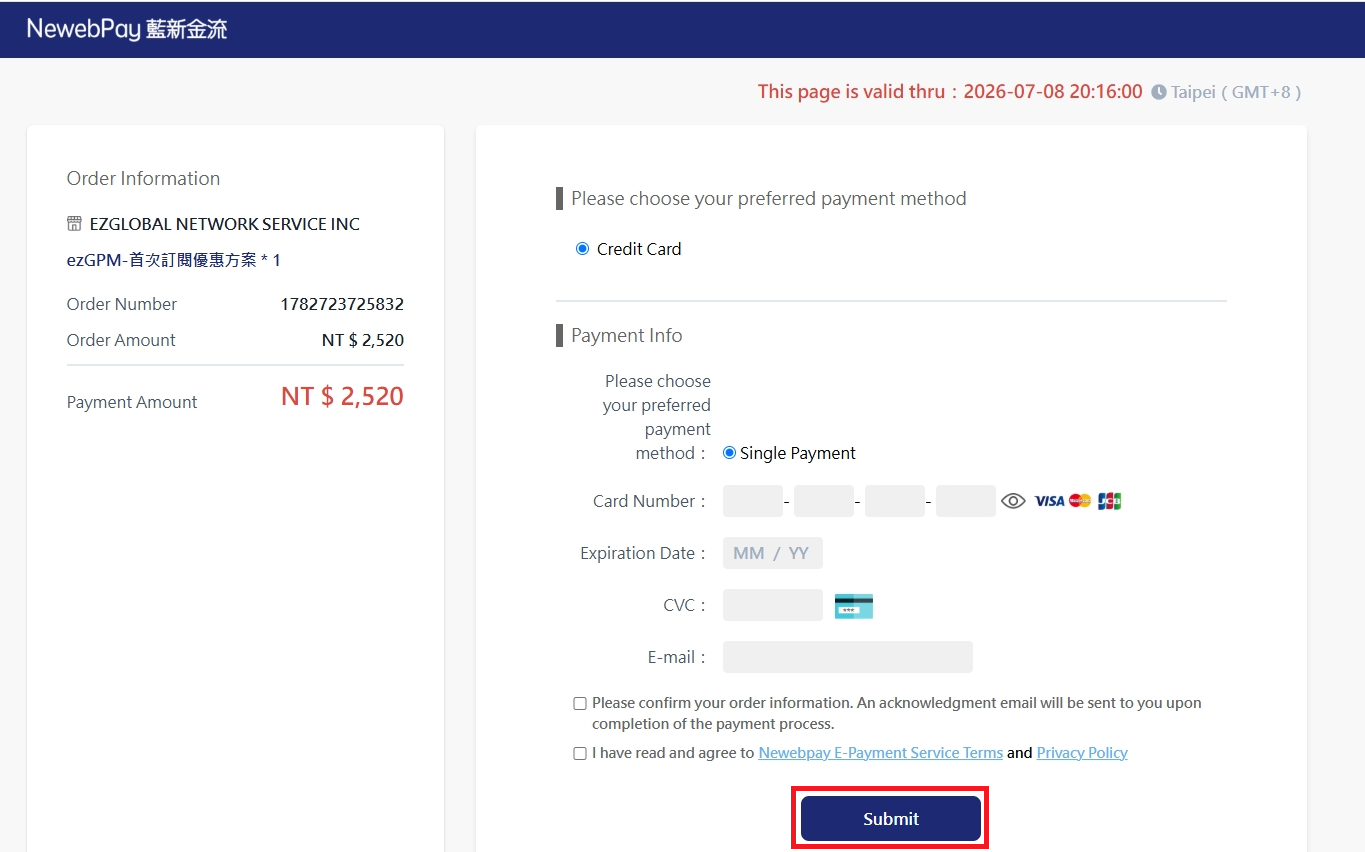
- Click "Proceed to Payment" next to the order status to enter the NewebPay payment page.
- On the NewebPay payment page, verify the Order Information, Order Amount, and Amount Payable, enter the payer's email address, select the agreement for the payment page instructions, and click "Confirm Submit".
- After payment is completed, confirm that the page displays "Payment Successful" and verify the Order Amount, Amount Payable, Payment Method, and Transaction Time.
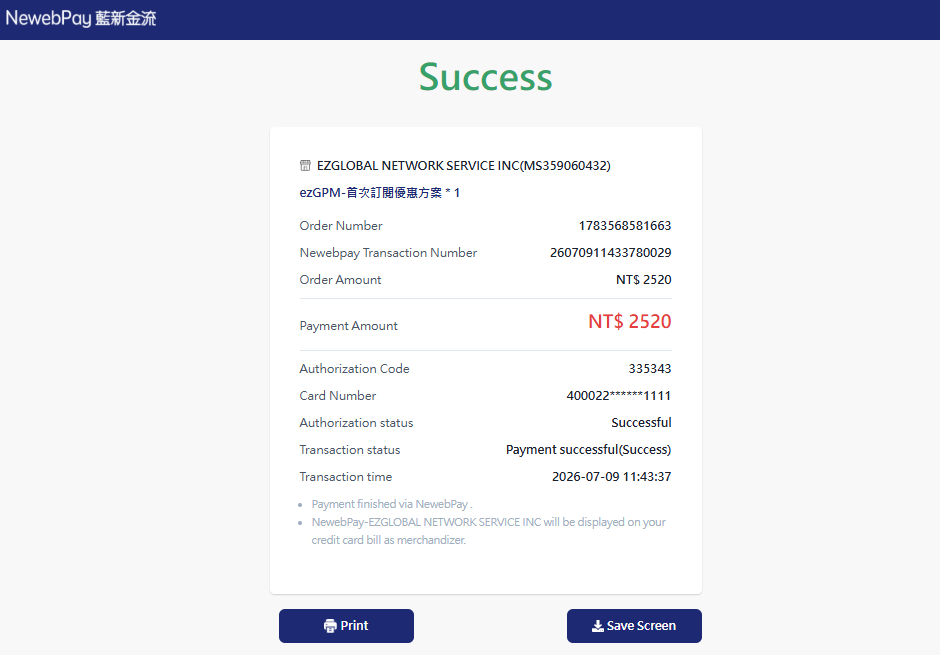
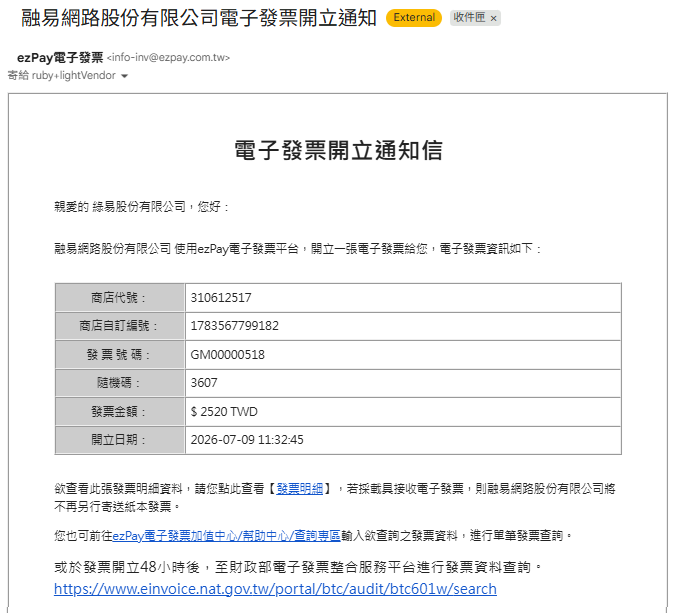
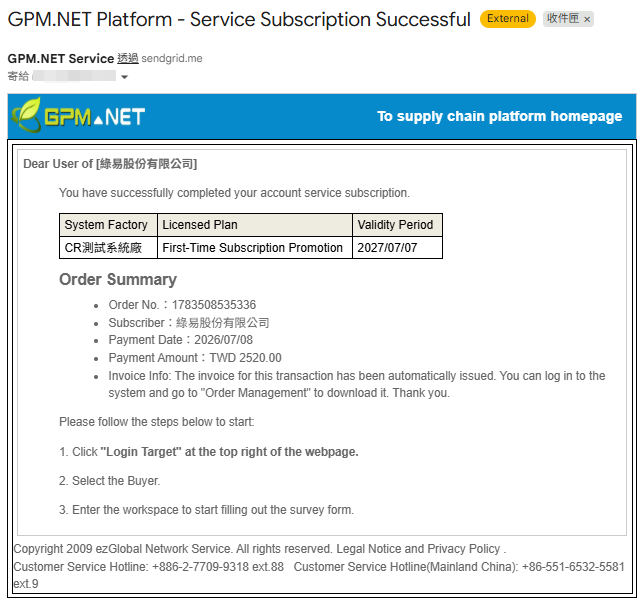
- After reconciliation by the payment system is completed (approximately 10 minutes), you will receive the following notification emails:
- Credit card payment notification
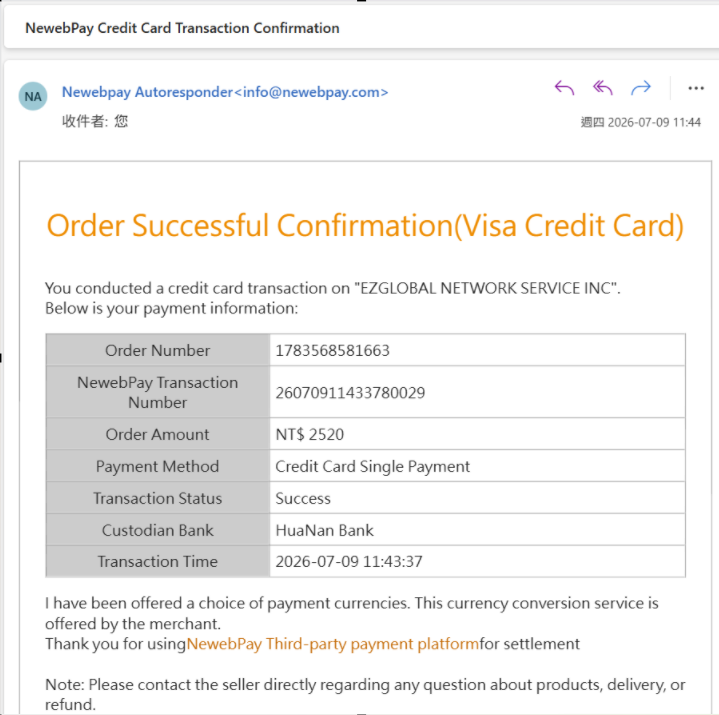
2. E-invoice issuance notice
3. Service subscription successful notification
ATM/Bank Transfer
-
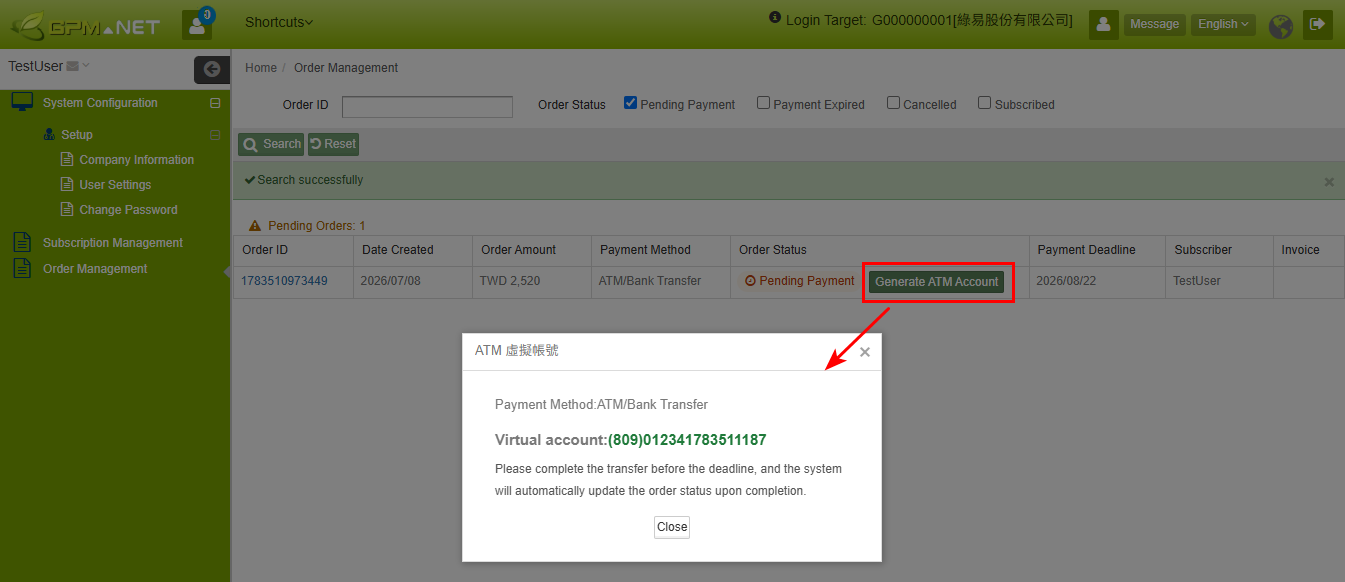
Click "Generate ATM Account" next to the order status to obtain the ATM Virtual Account information. If an account has already been generated, the system will directly display the virtual account information.
-
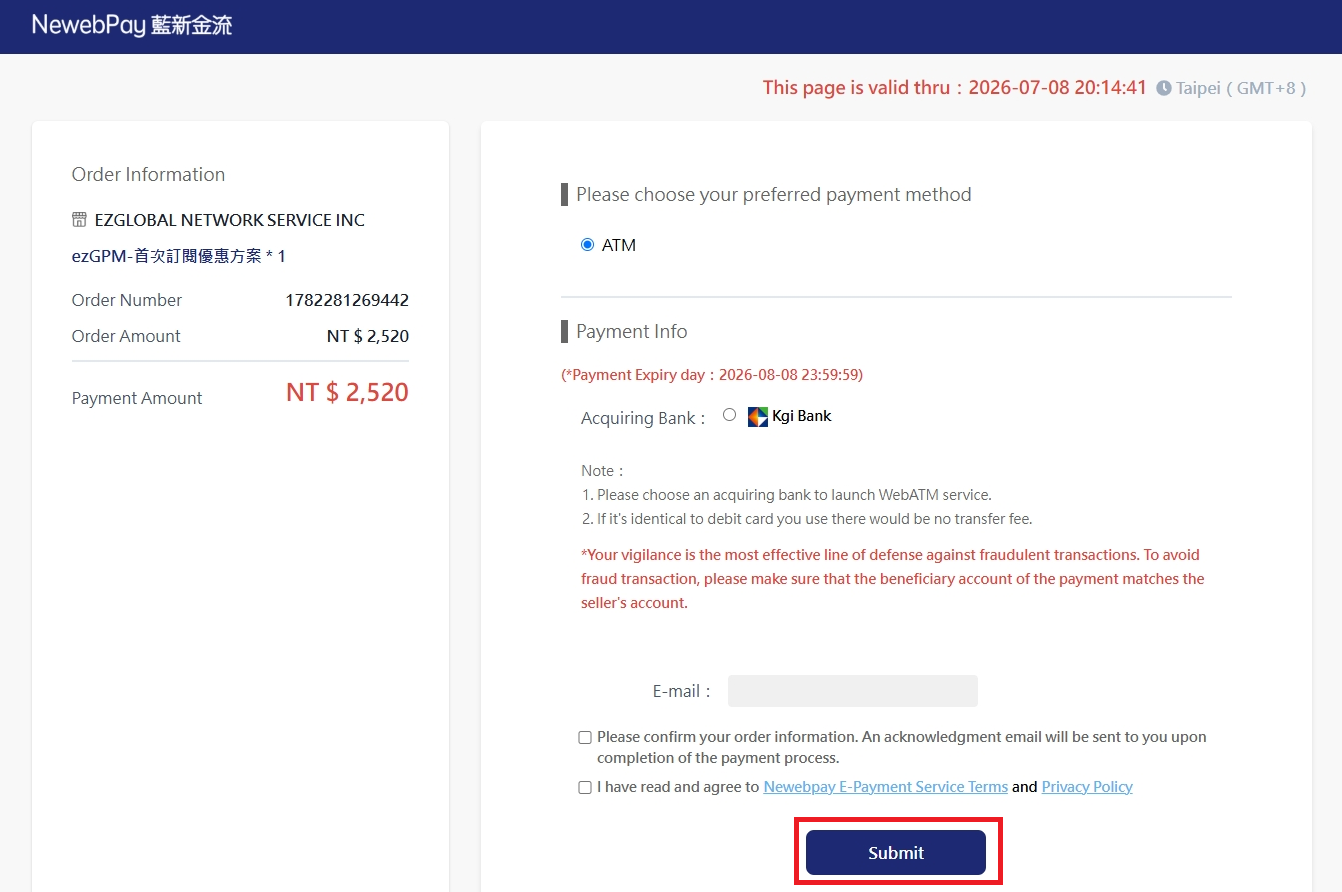
If an account has not yet been generated, the system will guide you to the NewebPay page to obtain a virtual account. Verify the Order Information, Order Amount, and Amount Payable, enter the payer's email address, select the agreement for the payment page instructions, and click "Confirm Submit".
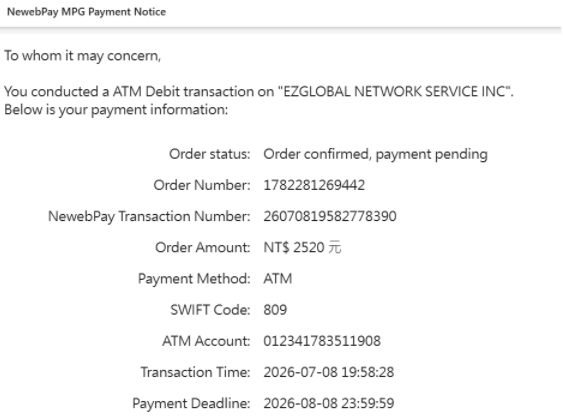
- The NewebPay system sends a payment notice email. The ATM transfer virtual account can be obtained from the email.
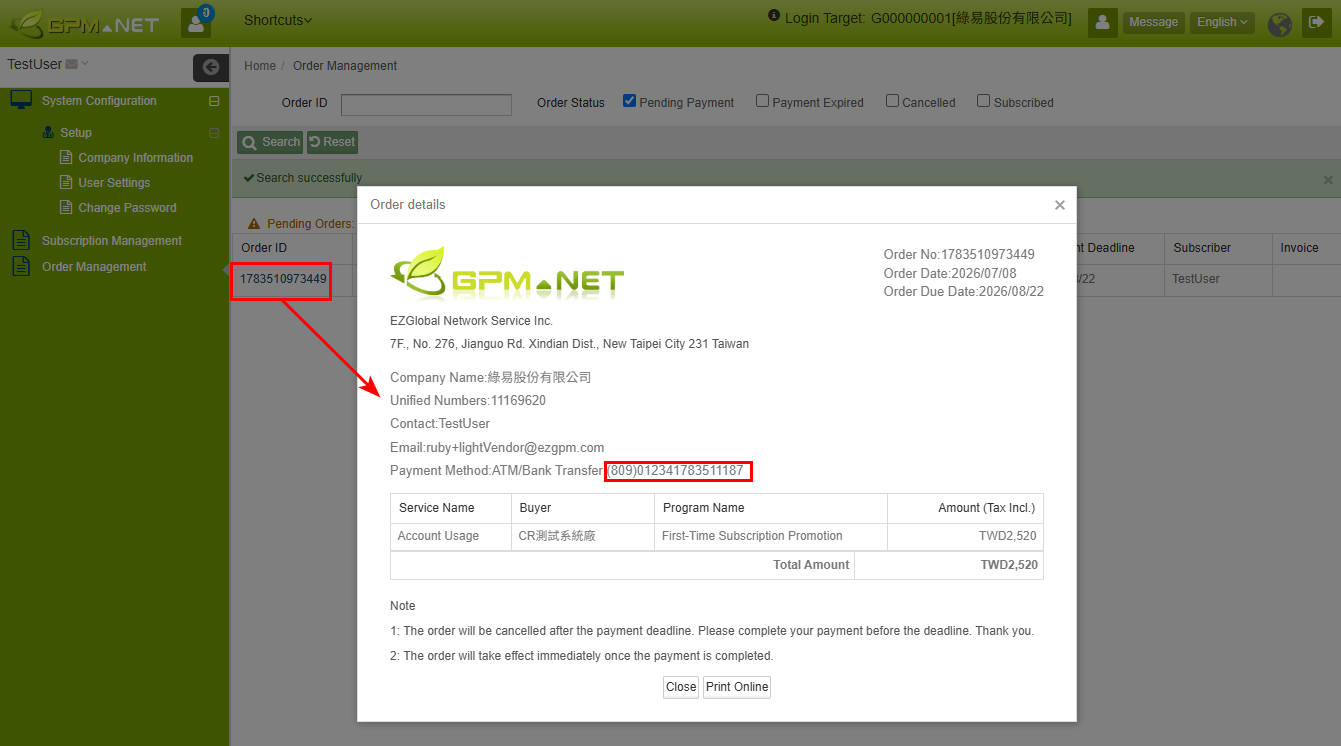
- After obtaining the ATM transfer virtual account, you can view the corresponding information in the order details.
-
After reconciliation by the payment system is completed (approximately 10 minutes), you will receive the following notification emails:
- ATM transfer result notification
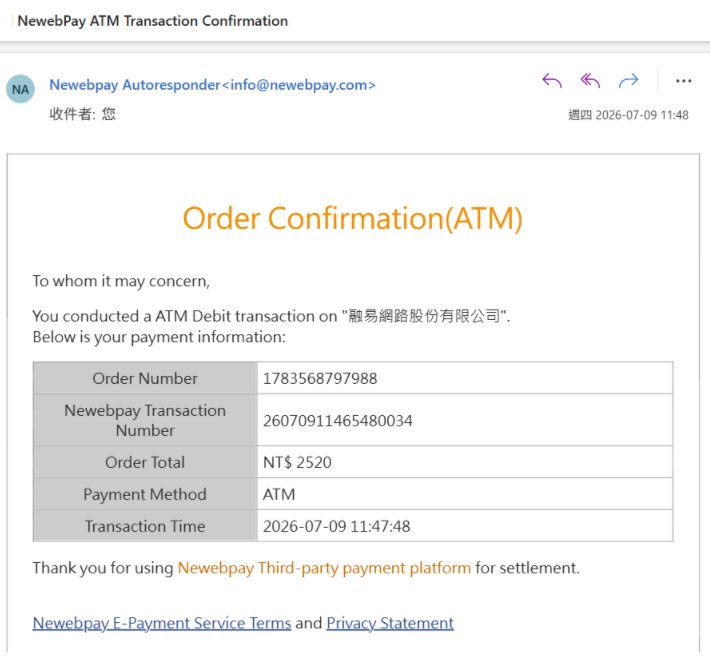
- E-invoice issuance notice
- Service subscription successful notification
Alipay
- Click "Proceed to Payment" next to the order status to enter the NewebPay payment page.
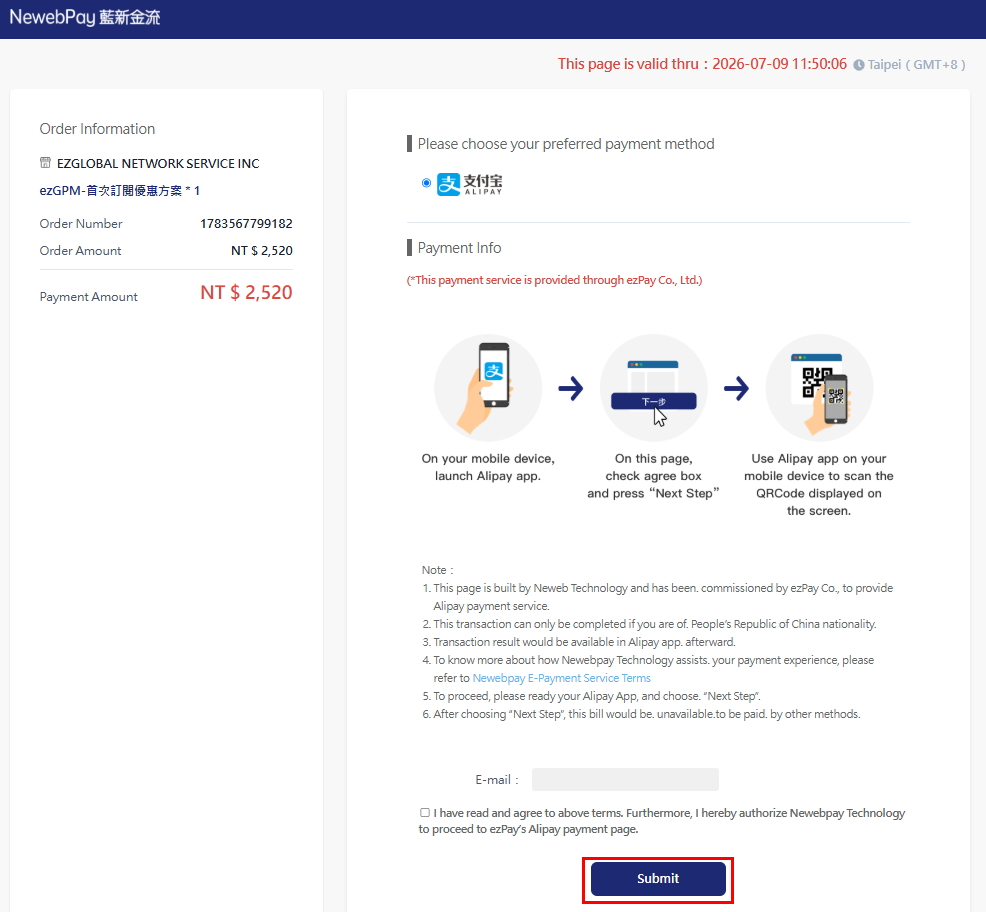
- On the NewebPay payment page, verify the Order Information, Order Amount, and Amount Payable, enter the payer's email address, select the agreement for the payment page instructions, and click "Confirm Submit".
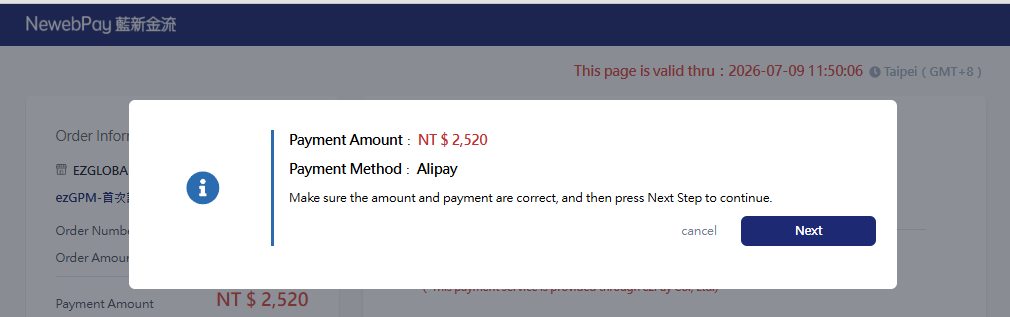
- After confirming again that the amount and payment method are correct, click "Next".
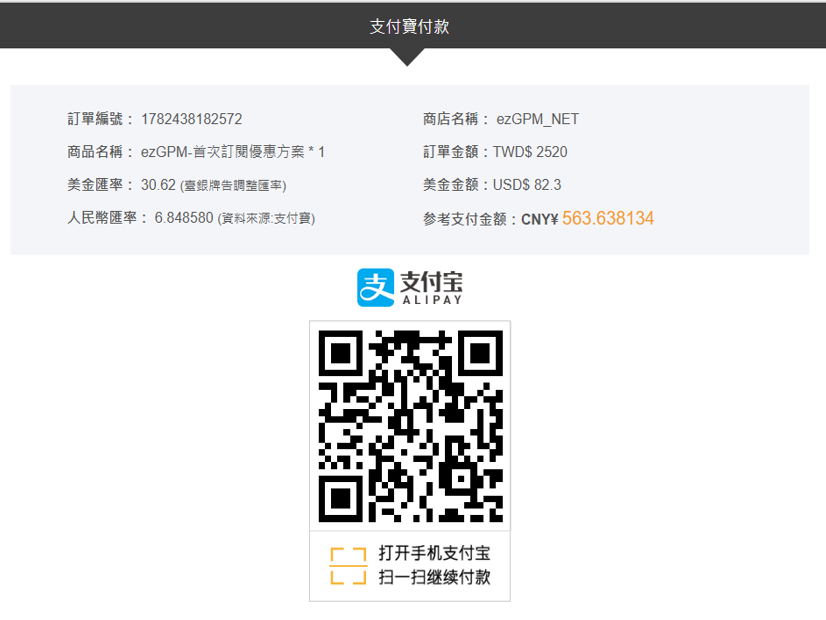
 4. The system displays a payment QR Code. Please scan the code to pay.
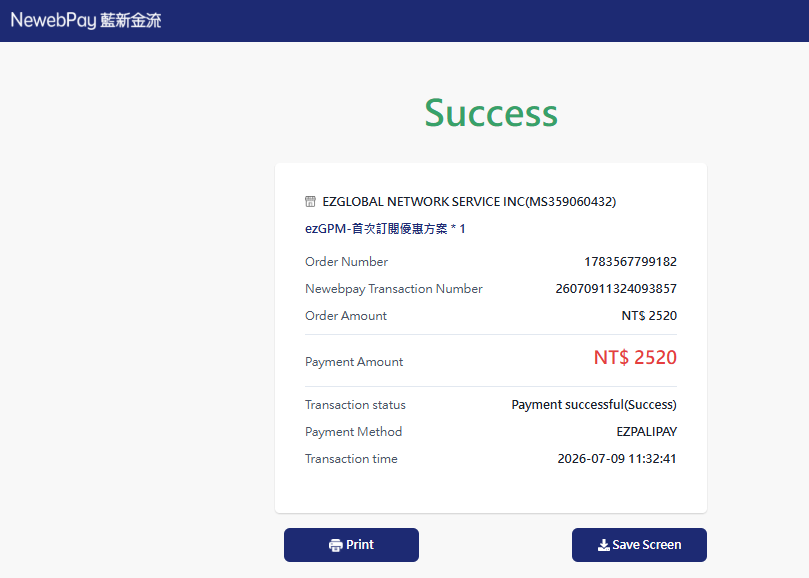
- After payment is completed, confirm that the page displays "Payment Successful" and verify the Order Amount, Amount Payable, Payment Method, and Transaction Time.
-
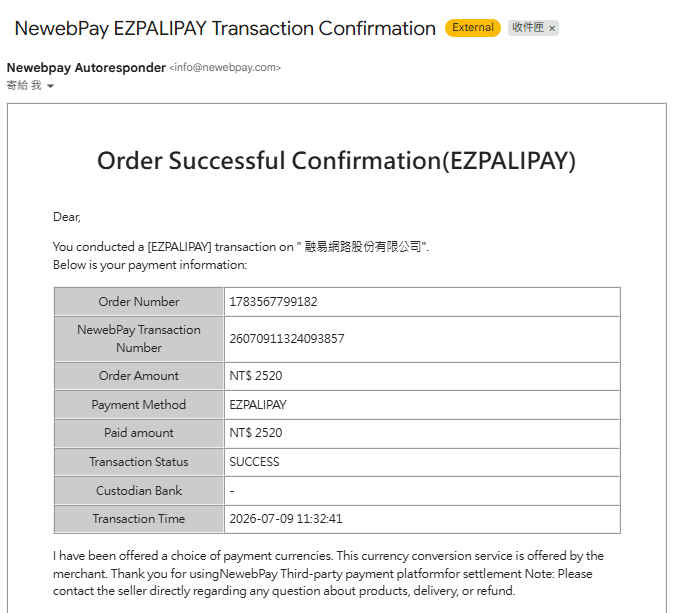
After reconciliation by the payment system is completed (approximately 10 minutes), you will receive the following notification emails:
- Alipay payment completion notification
- E-invoice issuance notice
To comply with Taiwan's local tax procedures, an e-invoice must be issued. If your company is an overseas company, please ignore this email and log in to the platform to download the Invoice as the official voucher.- Service subscription successful notification
UnionPay
- Click "Proceed to Payment" next to the order status to enter the NewebPay payment page.
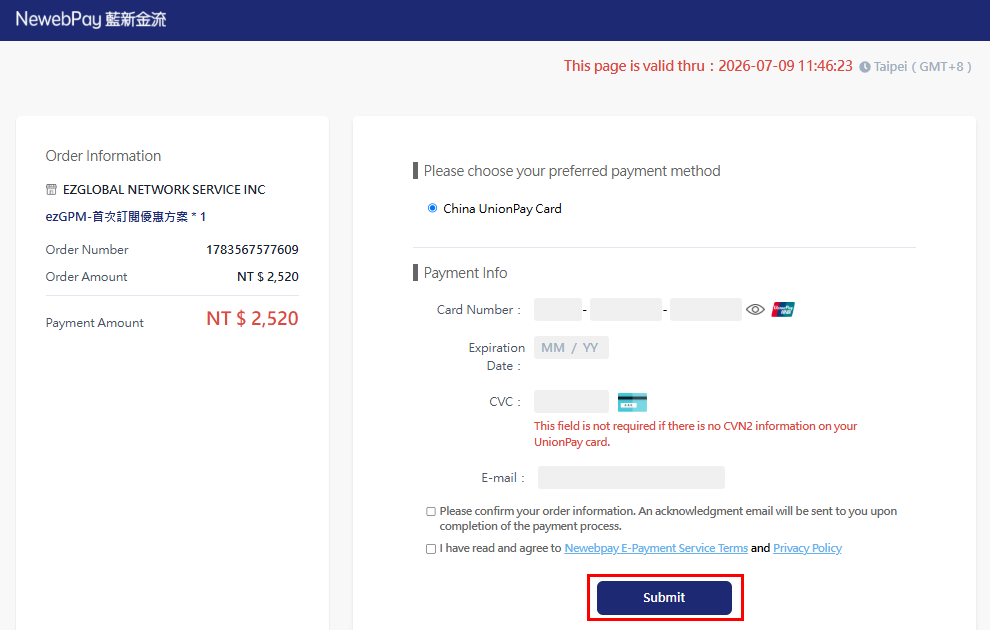
- On the NewebPay payment page, verify the Order Information, Order Amount, and Amount Payable, enter the payer's email address, select the agreement for the payment page instructions, and click "Confirm Submit".
-
After payment is completed, confirm that the page displays "Payment Successful" and verify the Order Amount, Amount Payable, Payment Method, and Transaction Time.
-
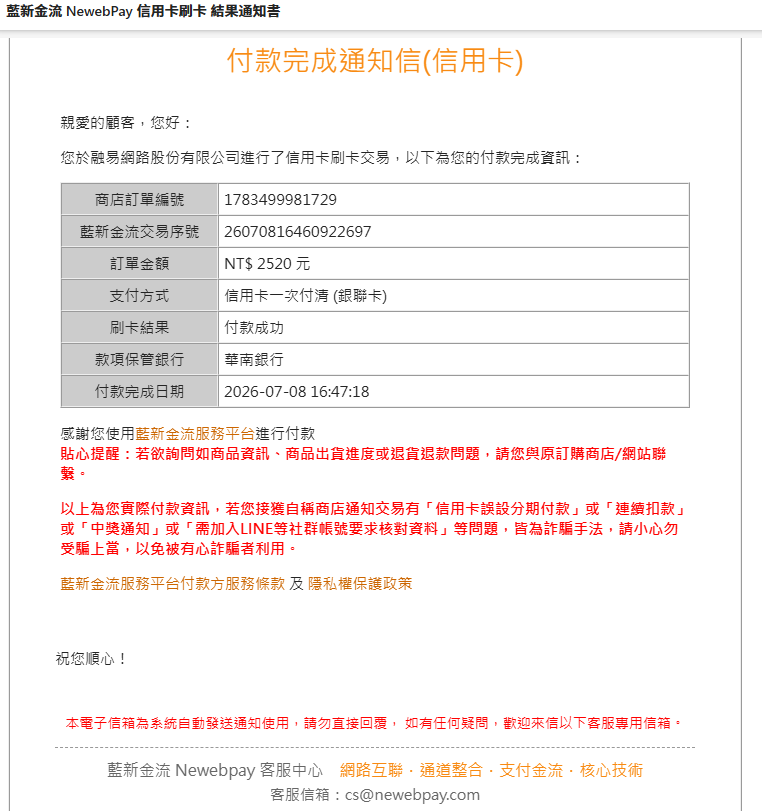
After reconciliation by the payment system is completed (approximately 10 minutes), you will receive the following notification emails:
-
UnionPay card payment notification
-
E-invoice issuance notice
-
3. Service subscription successful notification